

Follow our step-by-step guide to activate your eSIM on your device
To ensure a smooth setup, please check the following before installation:
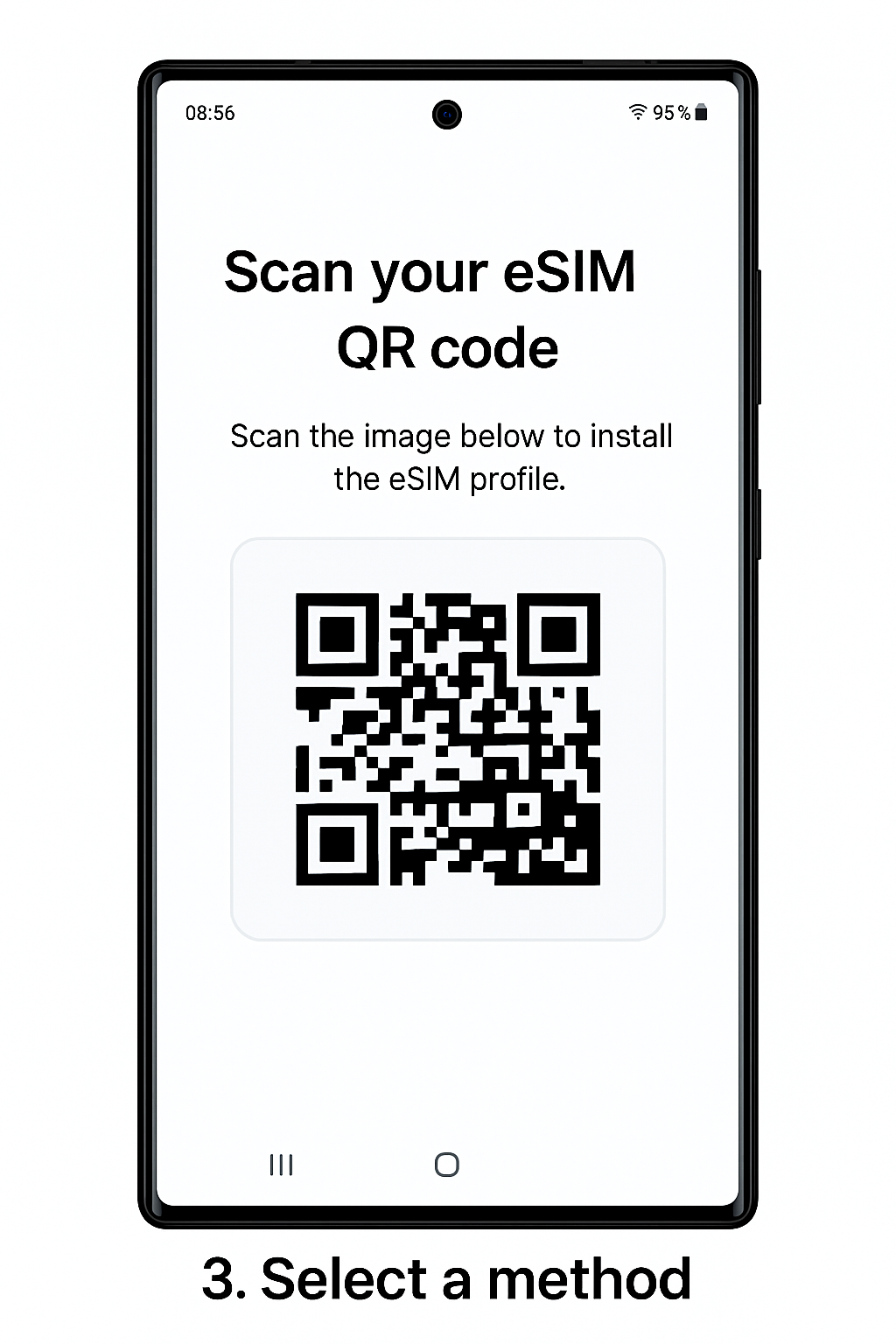
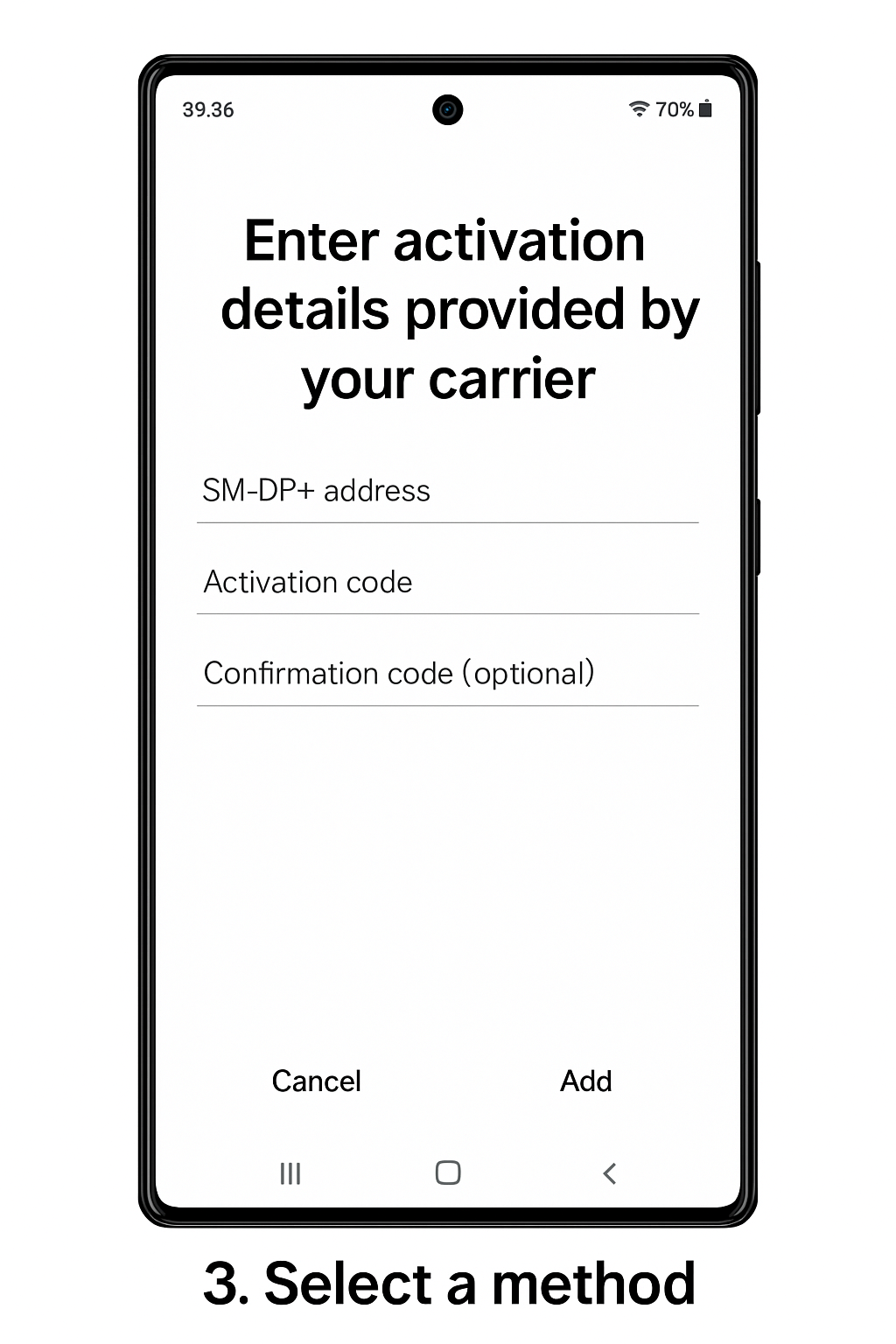
There are 2 ways of installing an eSIM on your device:
This article will guide you through both QR code and Manual methods.
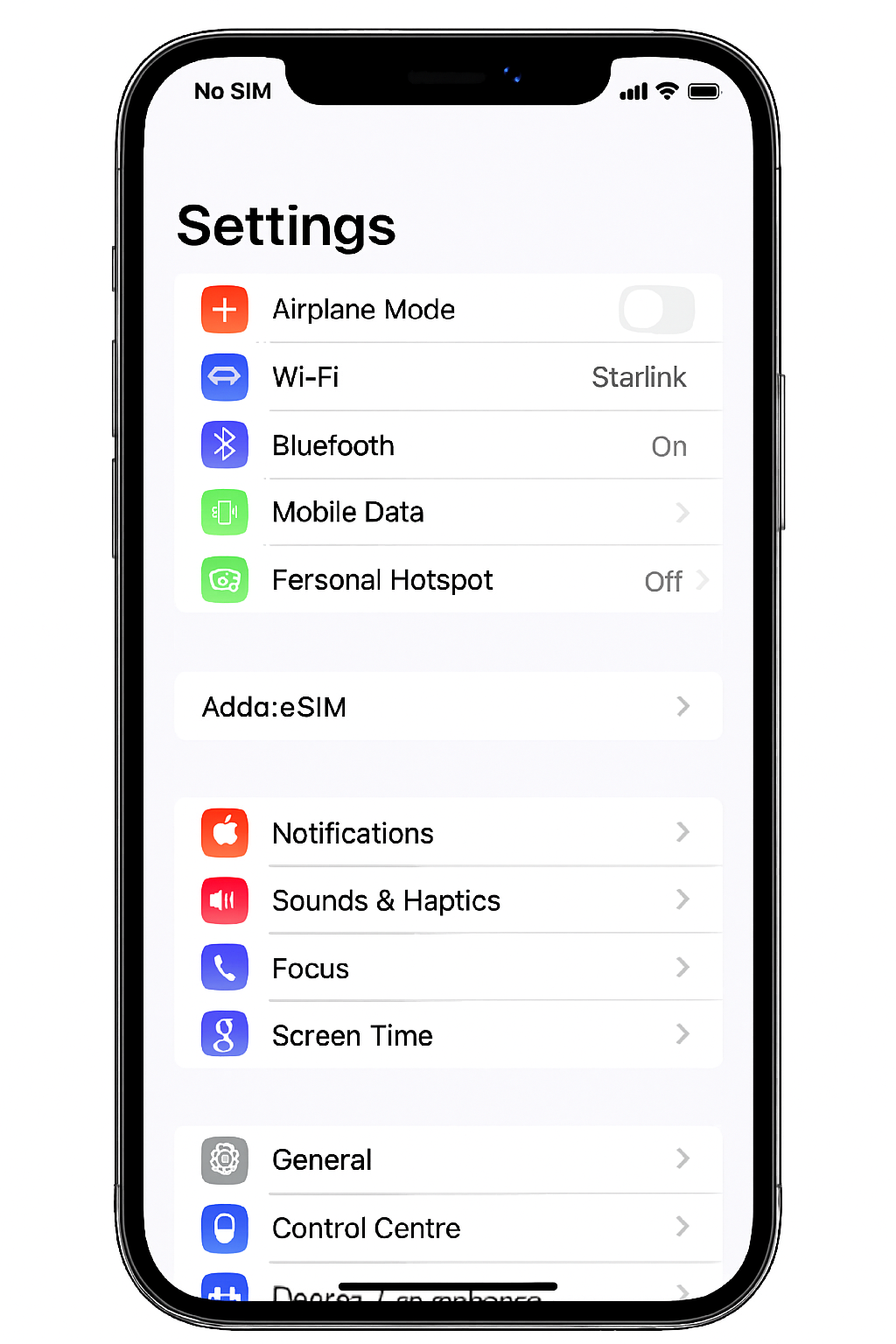
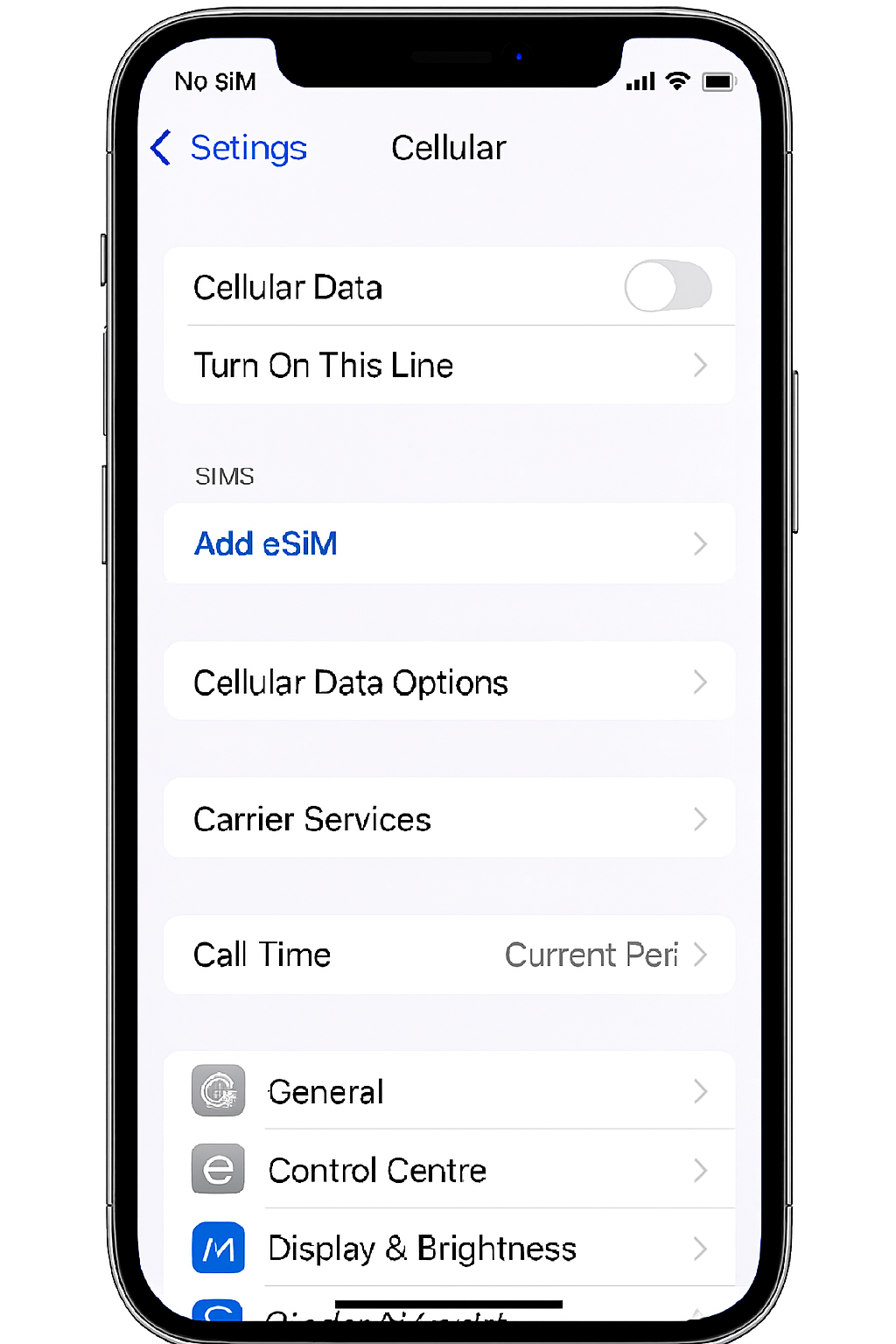
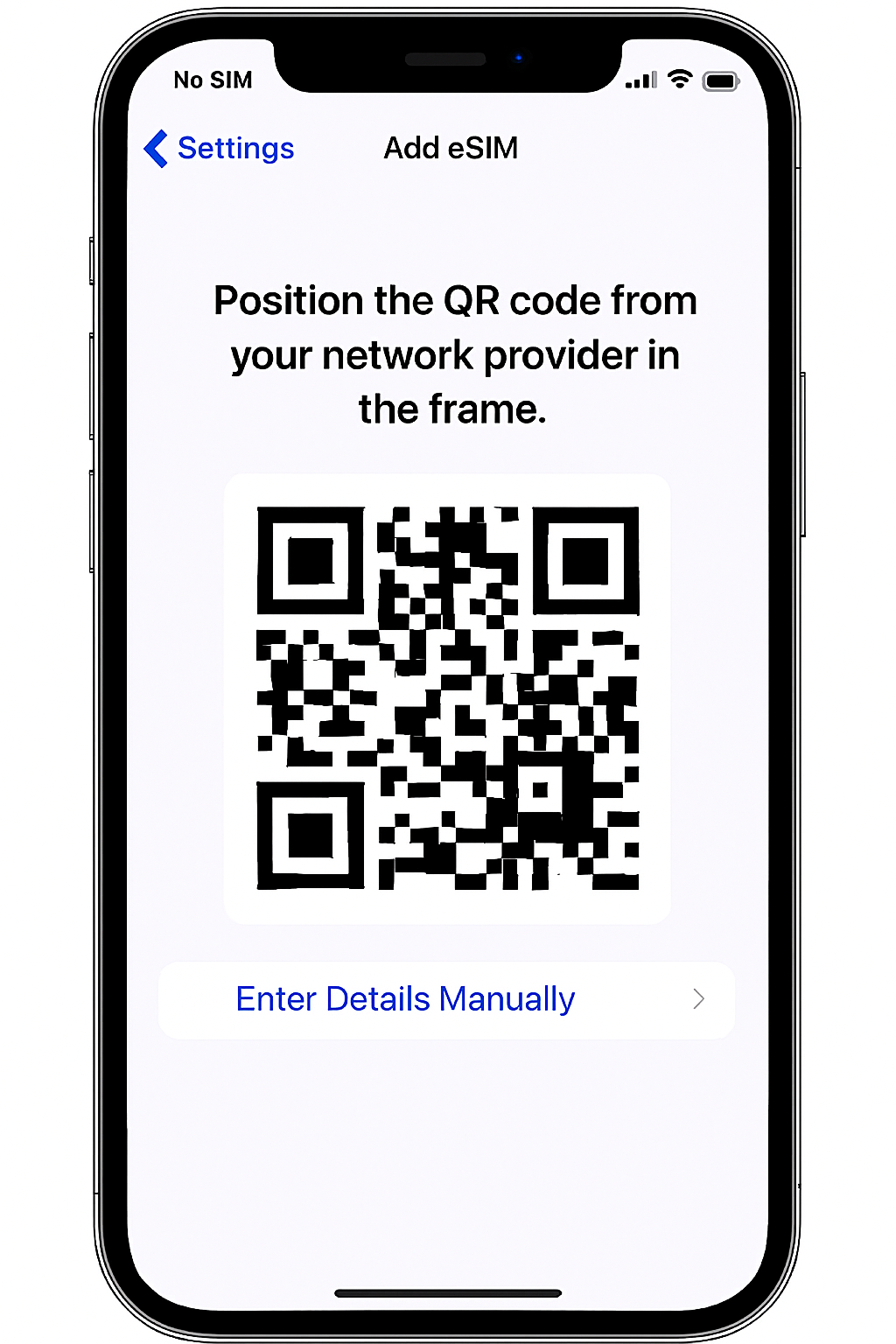
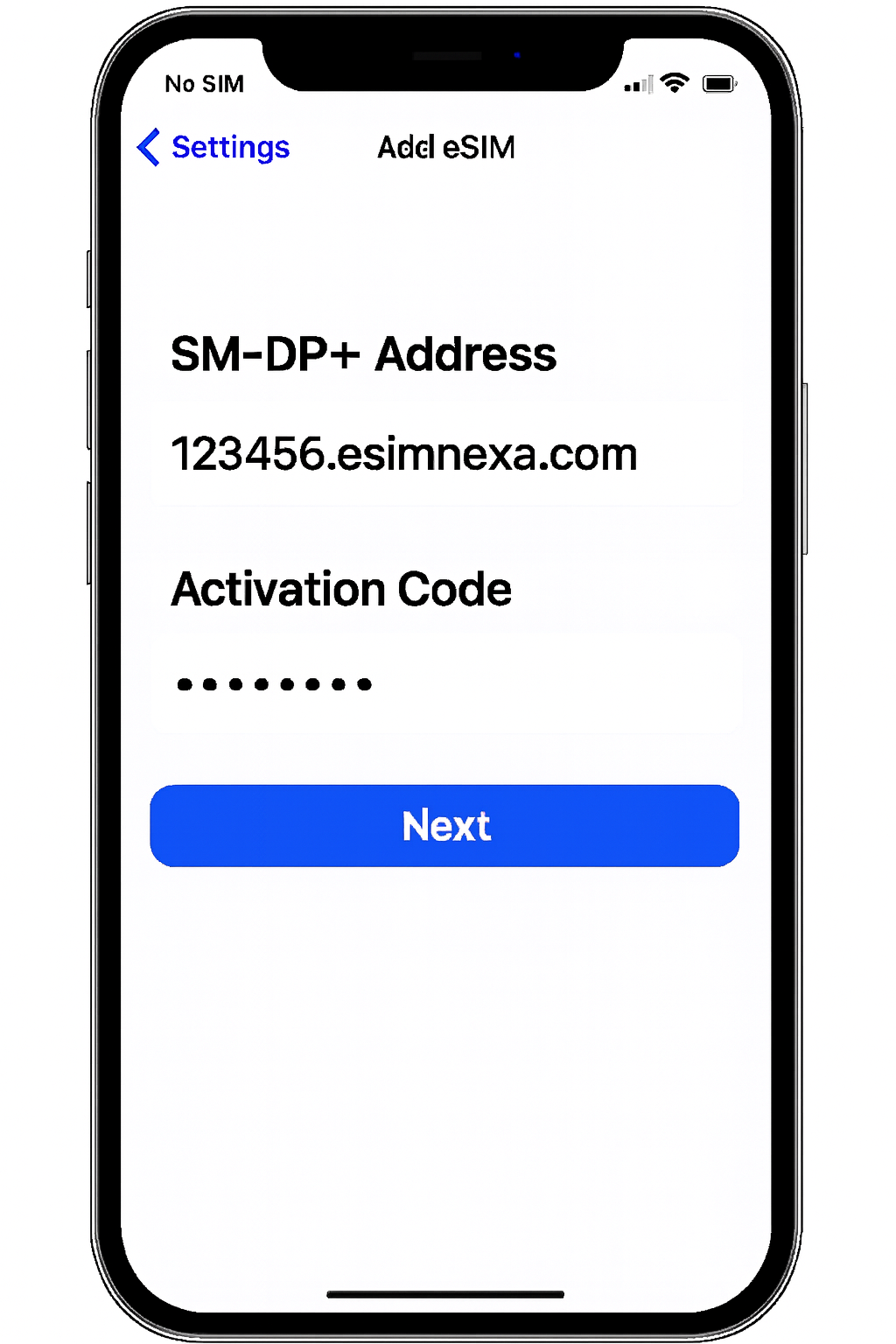
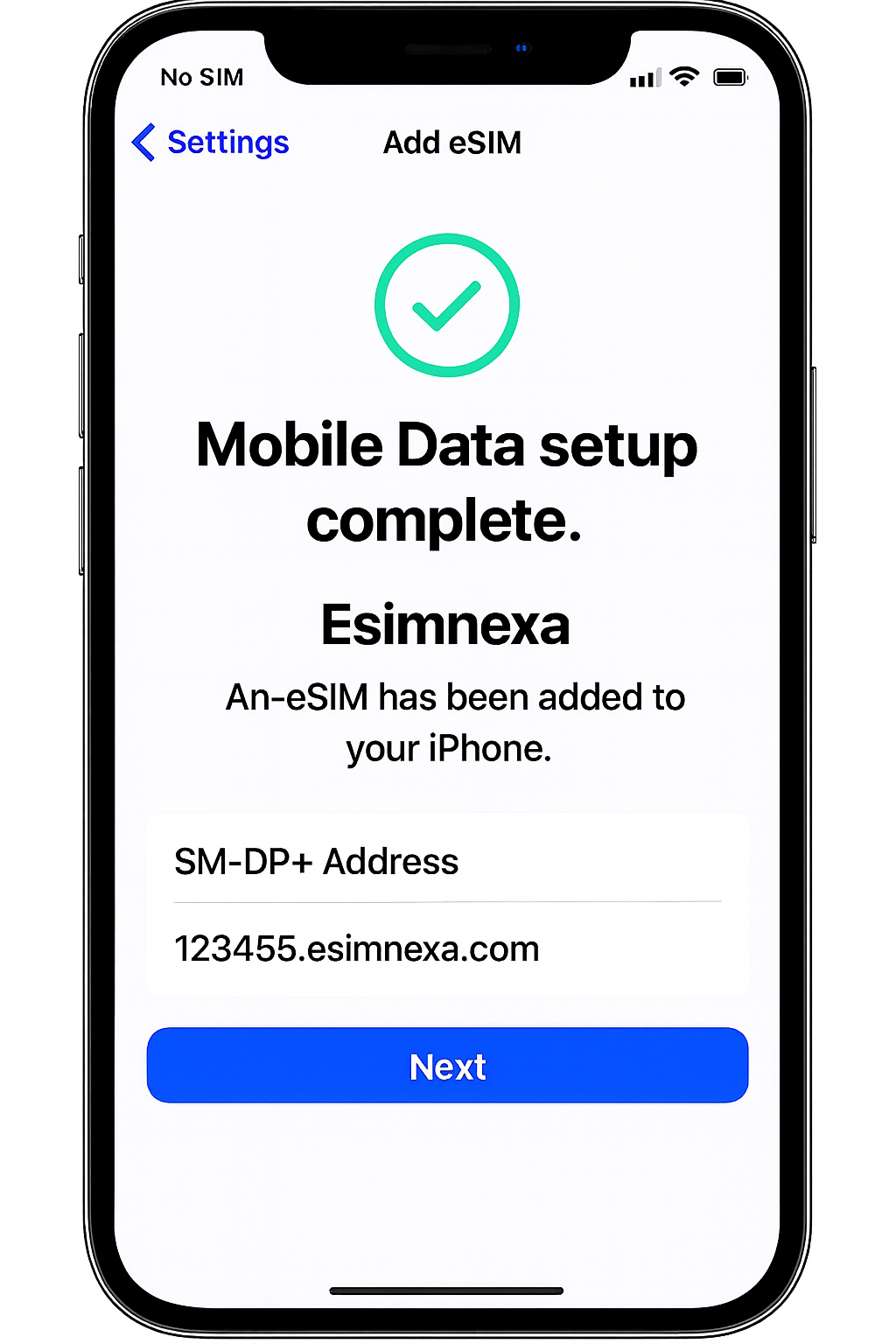
If you encounter difficulties connecting your esimnexa eSIM to the internet on a Samsung Galaxy device after installation, please ensure that you have completed the Access Data steps for your eSIM. You can find them in your esimnexa account:
Before proceeding with the following steps, confirm that the eSIM line is ENABLED and selected for mobile data.
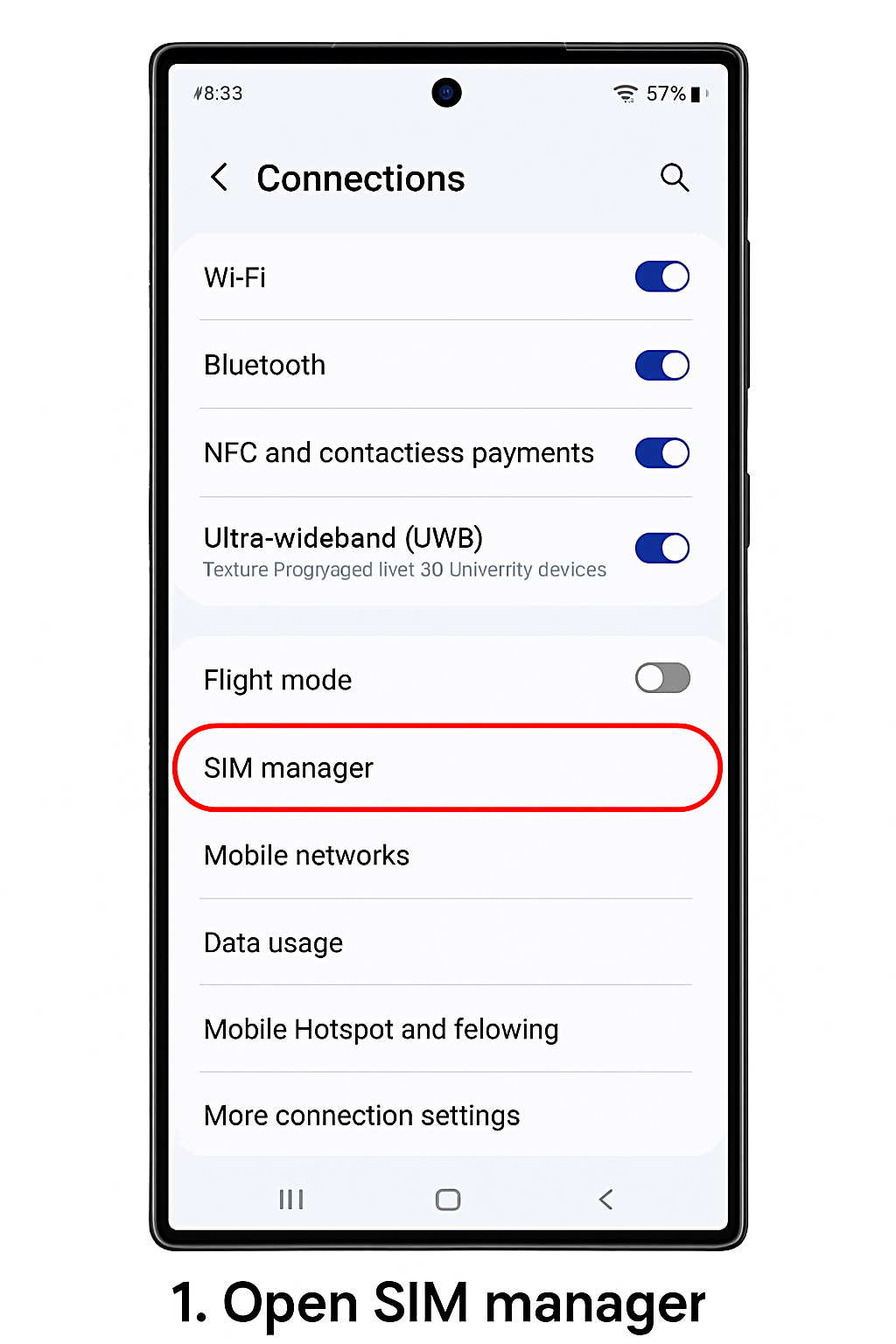
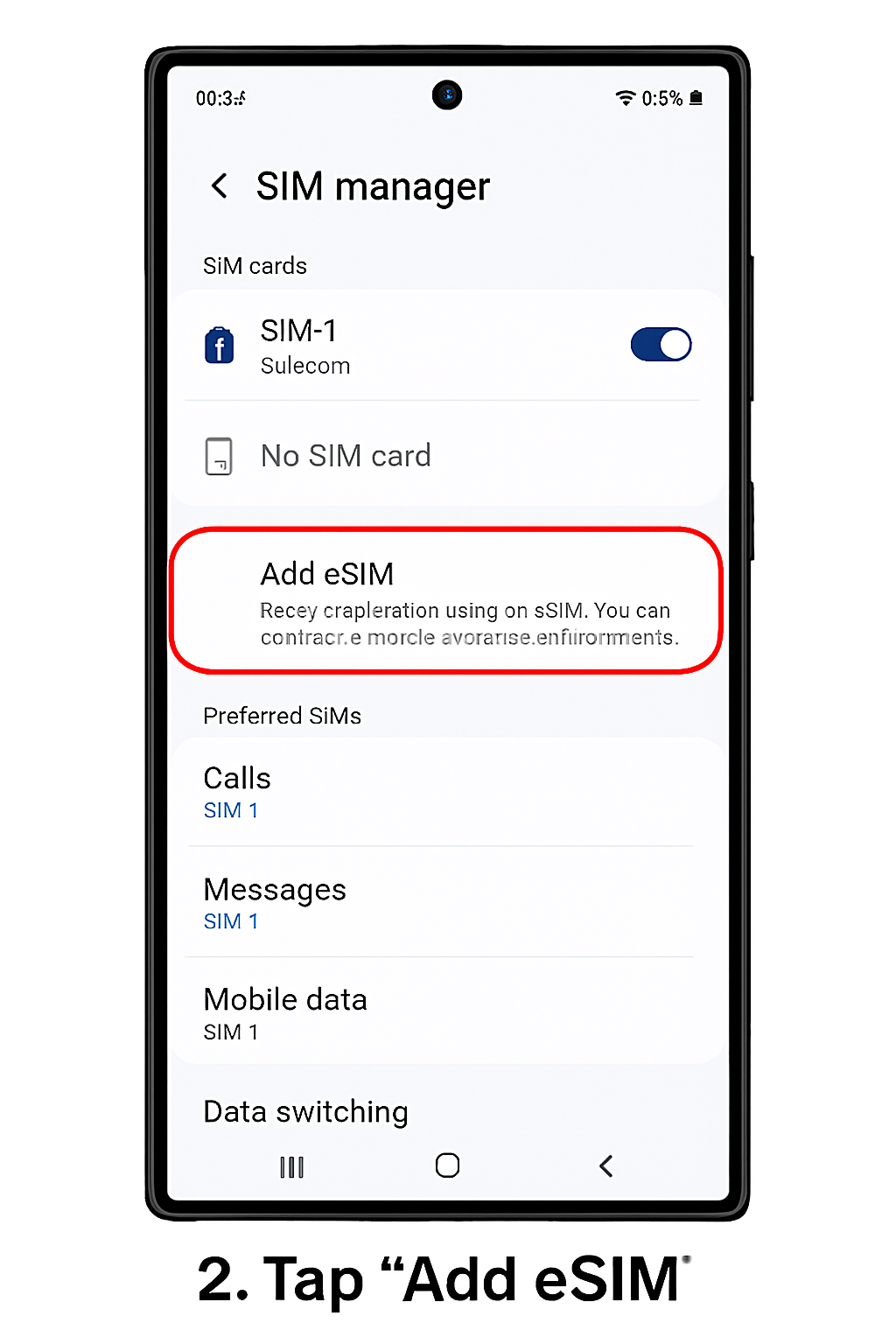
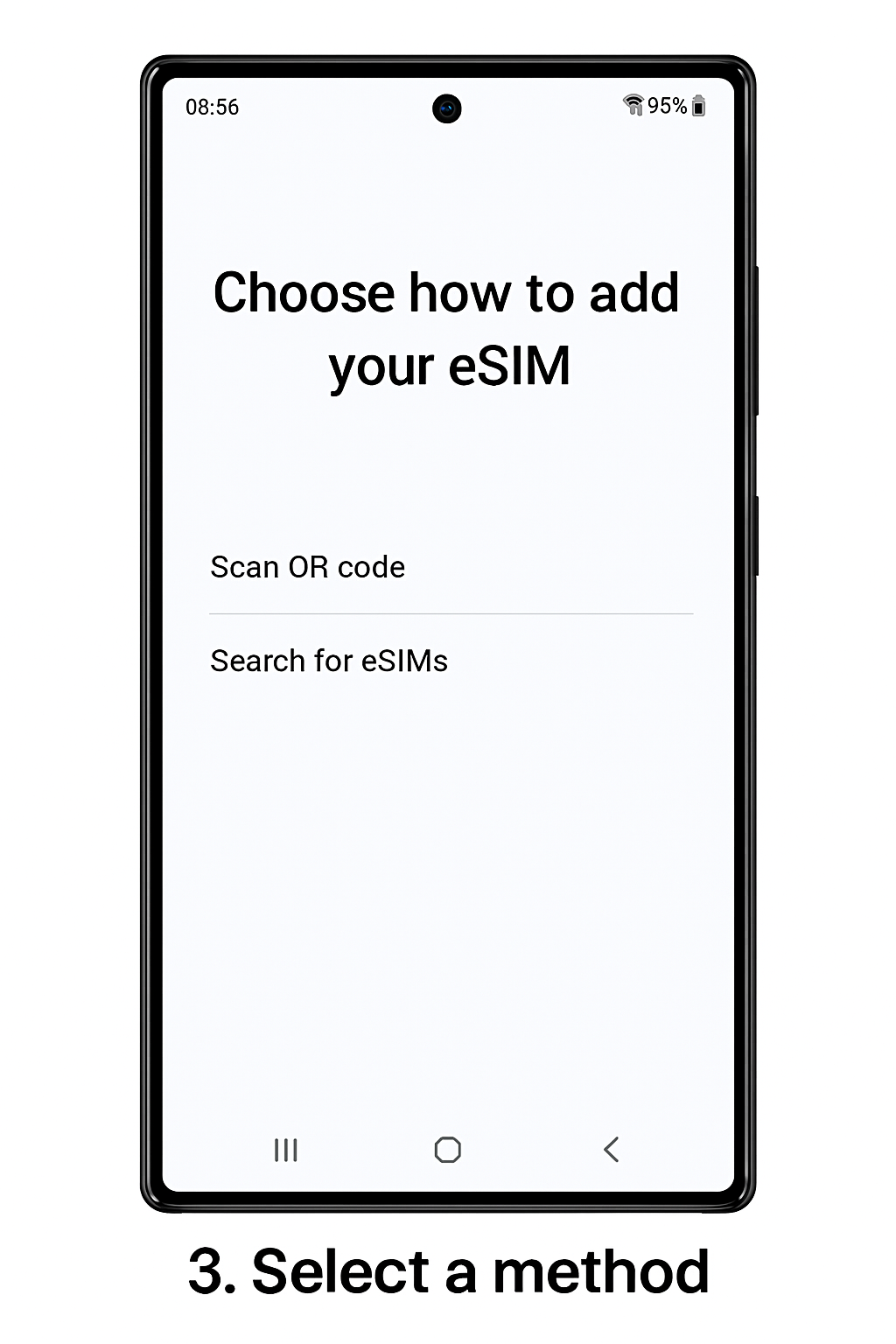
CHECK if you need to modify the APN on your device by opening the esimnexa app and viewing your eSIM instructions.
CHECK if you need to enable Data Roaming on your device by opening the esimnexa app and viewing your eSIM instructions.
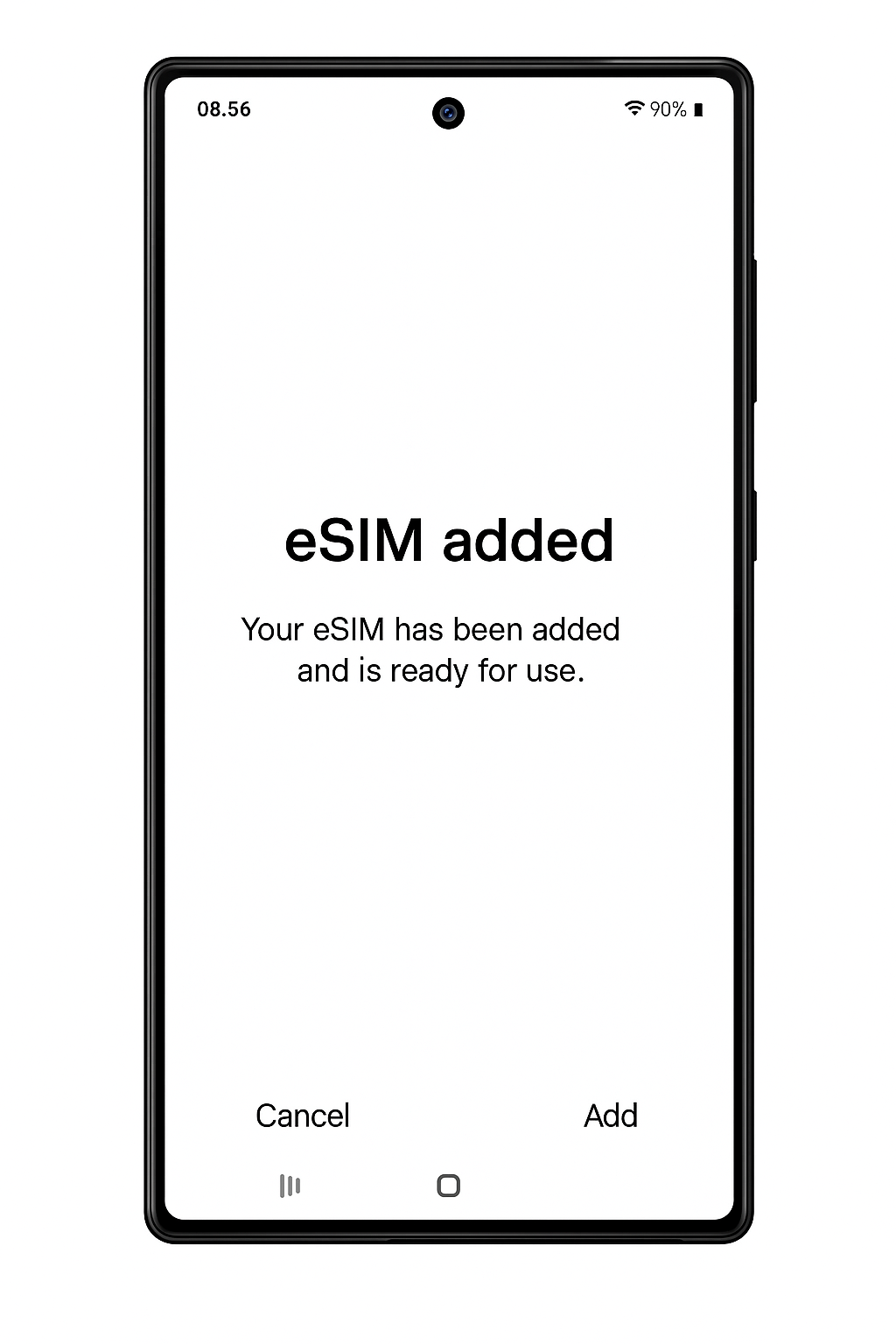
After correctly following the instructions above, your esimnexa eSIM should be successfully connected to the internet. If you need more assistance, please contact our support team, and we'll be happy to help.
